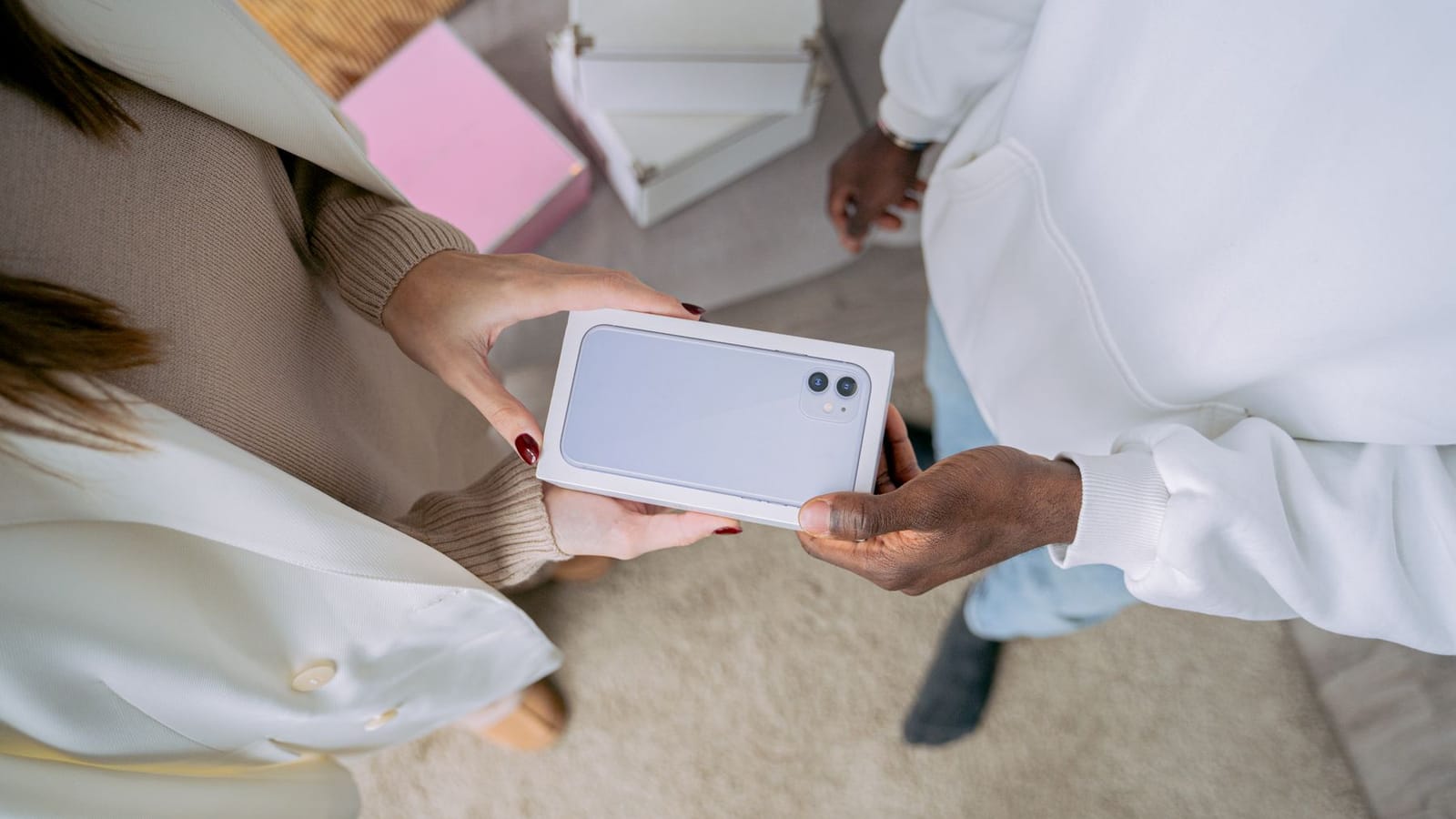
Got a New Phone or Laptop? What to Do With the Old One
A practical guide to the phone, laptop, tablet, or console you just replaced: move your data, wipe it, then trade it in, sell it, donate it, or recycle it.
The new phone is set up, the case is on, and the old one is face down on the counter. Maybe it is a laptop, a tablet, or a console that got replaced this holiday season. Either way, deal with the old device this week, while its charger is still within reach and its trade-in quote is still valid.
Waiting has a cost. Resale and trade-in values drop as newer models arrive, and a battery that sits unused for months can lose capacity or swell. The device also stays signed in to your accounts for as long as it sits in a drawer.
Move the Data You Want to Keep
Start with a backup. Do this before you sign out of anything, because signing out can remove local data you have not copied yet.
iPhone: Put the old phone next to the new one and use Quick Start, or check that iCloud Backup has run recently under Settings > [your name] > iCloud > iCloud Backup. Photos, messages, and app data restore when you sign in on the new phone. Apple’s guide to preparing an iPhone for a new owner covers the full sequence.
Android: In Settings, search for “backup” and run one now. The path differs by manufacturer, but most phones back up to Google Drive. When you sign in on the new phone during setup, you can restore apps, contacts, and photos.
Mac: Use Migration Assistant (Applications > Utilities) to copy files and accounts to a new Mac, or keep a Time Machine backup on an external drive.
Windows: Copy the files you care about to an external drive or cloud account. On Windows 11, Settings > Accounts > Windows Backup saves your settings and folders if you use a Microsoft account.
Wipe Each Device Properly
A factory reset is not enough if the device is still tied to your account. Activation locks and account sign-ins are what stop a new owner from setting it up, so handle those first.
iPhone
- If you paired an Apple Watch, open the Watch app, tap All Watches, tap the info button next to the watch, and choose Unpair Apple Watch. Unpairing erases the watch and removes Activation Lock.
- Keep your eSIM active until the new phone has service. When you erase an iPhone that uses eSIM, choose the option to erase the eSIM profile too if you are passing the phone on.
- Sign out of your Apple Account under Settings > [your name] > Sign Out. If you are moving to Android, deregister iMessage before you erase the phone.
- Erase it under Settings > General > Transfer or Reset iPhone > Erase All Content and Settings.
Erasing the phone turns off Find My and Activation Lock. If you cannot complete the erase, stop and fix that before selling or trading the phone. A device with Activation Lock on it is worth very little to anyone else.
Android
- Back up first.
- Remove your Google account under Settings > Passwords & accounts > Google > Remove account. The exact menu name varies by phone, but the goal is the same: the phone must not be protected by Factory Reset Protection when the next person turns it on.
- Factory reset under Settings > System > Reset options > Erase all data (factory reset). On Samsung phones, look under Settings > General management > Reset > Factory data reset.
- Remove the SIM card and any microSD card.
An iPad uses the same steps, with iPad in place of iPhone. An Android tablet follows the same account removal and reset steps as an Android phone.
Mac
Back up with Time Machine first. On macOS Ventura or later, sign out under System Settings > [your name] > Sign Out. Then use System Settings > General > Transfer or Reset > Erase All Content and Settings. This works on Macs with Apple silicon or a T2 chip running macOS Monterey or later.
On an older Intel Mac, restart and hold Command-R to open macOS Recovery, then use Disk Utility to erase the startup disk and reinstall macOS. Apple’s guide to selling or trading in a Mac has the recovery steps.
Windows
Back up your files, then go to Settings > System > Recovery > Reset PC. Choose Remove everything. If you are giving the PC away, choose the option to clean the drive if you are offered one. On Windows 10, the path is Settings > Update & Security > Recovery > Reset this PC. Microsoft’s recovery options guide walks through both versions.
Game consoles
Sign out of your accounts, then reset from the settings menu:
- PlayStation 5: Settings > System > System Software > Reset Options > Reset Your Console
- Xbox: Profile & system > Settings > System > Console info > Reset console
- Nintendo Switch: System Settings > System > Formatting Options > Initialize Console
Pick a Path
Once the device is wiped, choose based on what it is worth and how much effort you want to spend. These are rules of thumb, not appraisals.
| The device | Best first move |
|---|---|
| Under two years old, works, screen is intact | Trade it in or sell it |
| Two to four years old, works | Hand it down, sell it, or take a trade-in quote |
| Older than four years, or cracked screen | Donate it or recycle it |
| Will not power on, or has a swollen battery | Recycle it with a certified recycler |
Hand it down
A working phone or laptop that is two or three years old is still useful to a family member, a student, or someone who needs a backup. This is the lowest-effort option if you know the person. Wipe it first, then help them sign in and set it up. Do not pass on a device with a swollen battery or a failing charger port.
Trade it in
Apple, Samsung, Best Buy, and the major carriers all run trade-in programs, and most of them push harder during the holidays. A carrier offer may require a new line, a specific plan, or a device purchase, and the credit often arrives as monthly bill credits rather than cash. Read the terms before you count on the full amount. A gift card and a two-year credit are not the same deal.
Get the quote first, then wipe the device before you ship it. Trade-in kits usually have a deadline, so do not let the box sit by the door. Keep the confirmation email until the credit shows up.
Sell it
Selling takes more work than a trade-in, but it can pay more for a recent phone, a MacBook, or a current-generation console. Take clear photos, list the exact model and storage size, and note any scratches or battery service. Include the charger and the original box if you still have them, and confirm the phone is carrier unlocked before you promise it will work on any network.
Meet in a public place or use a platform with buyer protection. Our guide to selling old electronics directly covers pricing and safety.
Donate it
Local schools, community centers, and nonprofits sometimes take working computers and phones. Ask what they need before you show up, and confirm that they accept the age and type of device you have. A ten-year-old laptop with a dead battery is usually a recycling problem, not a donation. See where to donate old electronics for options that vet their recipients.
Recycle it
Recycling is the right answer for anything broken, obsolete, or not worth shipping. Retail drop-off programs are the easiest route for phones, laptops, tablets, and accessories. Our computer and laptop recycling guide covers what the major stores accept, and the directory lists local recyclers by state and city.
If the Laptop Will Not Start
A dead laptop still needs its data handled. If the drive is easy to reach, remove it and keep it, or ask the recycler whether they offer drive removal or shredding. On newer laptops with soldered storage, you cannot separate the drive, so choose a recycler that documents secure destruction. Our guide to data security and recycling explains what to ask for.
Do not pay for a repair just to wipe a laptop you were going to recycle. A recycler can handle a non-working machine, and you can ask about drive destruction when you drop it off.
Cables, Cases, and Batteries
The old phone is only part of the pile. Chargers, cables, cases, earbuds, and smartwatches also get replaced.
- Cables and chargers: most retail drop-off programs take them. Test them first and keep the ones that still work.
- Earbuds and headphones: retail electronics drop-offs take most of them. A plain plastic or silicone case is not e-waste, so pass on a good one and throw out a worn one.
- Smartwatches and fitness bands: unpair them from your phone and wipe them like a phone.
- Loose batteries: tape the terminals and keep them out of the trash.
A swollen battery is a fire risk. Do not press on it, puncture it, or put it in a drawer with other devices. Do not mail it in a trade-in box. Keep it away from anything flammable and take it to a household hazardous waste site or a battery recycler. Our guide to recycling batteries near you lists the drop-off options.
Watch the Calendar
Trade-in quotes expire. Some holiday promotions require activation within a set window, and mail-in kits often come with a return-by date. Check the date before the box disappears into the closet.
If you are still inside a store’s return window for a new device, decide now if you are keeping it. A second phone or a laptop that does not fit your work is better returned than stored.
Find Somewhere to Take It
You do not need a perfect plan. Put the old phone in your bag, look up a drop-off point on the state and city directory, and take it on your next trip out. If you are trading it in, print the label tonight and put the box in the car.
The new device is already in use. The old one should not still be on the counter in January.
Related guides
- Spring Cleaning Your Tech Drawer: The April 2026 Guide to Finally Getting Rid of It Here's a room-by-room approach that actually gets you to the finish line in the race to rid your life of junk.
- The Hidden Environmental Cost of Holiday Tech Gifts (And How to Give Smarter in 2025) Americans are expected to purchase over 125 million electronic devices as gifts during the holiday season.
- How to Sell Your Old Electronics Directly and Get More Than Trade-In If you want to know what your device could actually fetch on the open market, and which platforms make direct selling genuinely manageable, this guide is for you.